Setup Access Controls
Task
Create reusable Access policies that define who can access protected resources. These policies will be reused later when configuring Device enrollement and the MCP portal in M5.
In this step you create reusable policies only. You will attach them to Device Enroll and MCP portal (Ai control) later.
We do not onboard any applications in this step. MCP AI control happens in M5 when you create the MCP portal.
What You Are Configuring
- Two reusable Access policies:
All employeesandIT admins
Step 1: Navigate to Access Policies
- In your Cloudflare One dashboard, navigate to Access controls
- Go to Policies
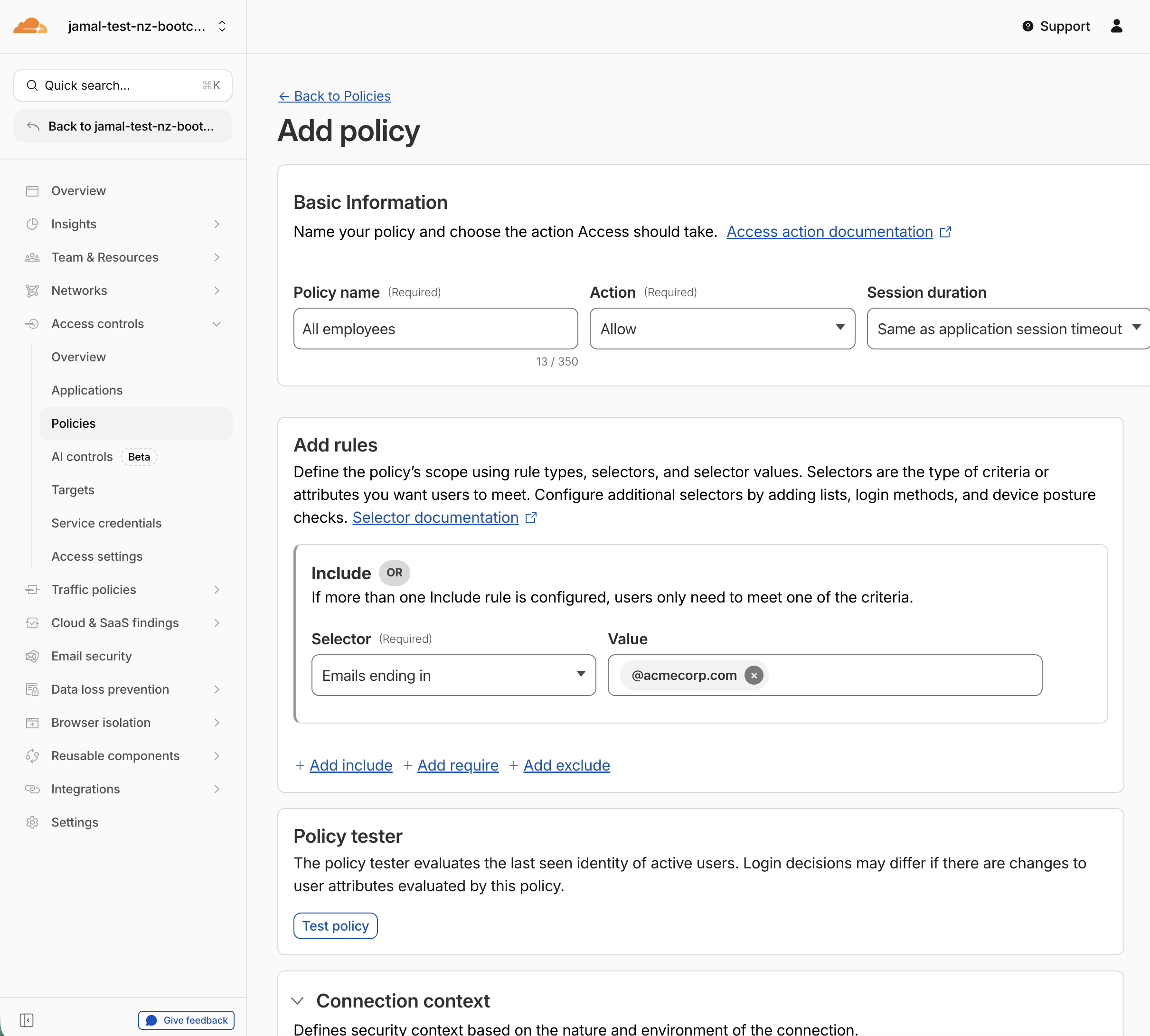
Step 2: Create Policy — All Employees
Create the simplest possible policy: one that grants access to anyone in AcmeCorp.
- Click Create add policy
- Configure:
| Field | Value |
|---|---|
| Policy name | All employees |
| Include | Emails ending in @acmecorp.com |
- Click Save
Expected Result
The All employees policy is created and visible in the policies list.
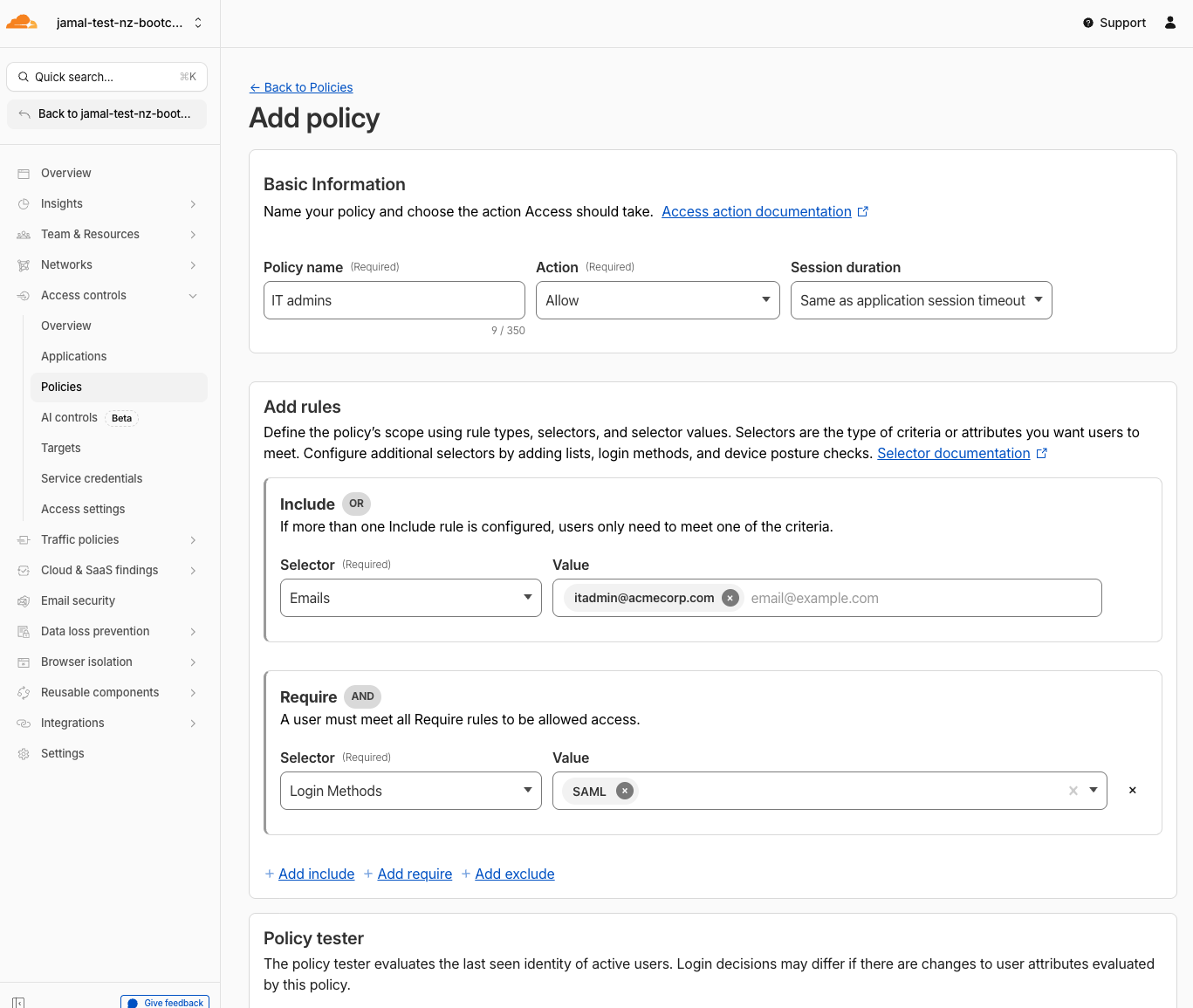
Step 3: Create Policy — IT Admins
Create a more restrictive policy that includes only IT administrators and requires SAML authentication.
- Click Create a policy
- Configure:
| Field | Value |
|---|---|
| Policy name | IT admins |
| Include | Emails: itadmin@acmecorp.com |
| Require | Login Methods: SAML |
- Click Save
Expected Result
The IT admins policy is created. It requires both the correct email and SAML authentication — both conditions must be met.
Step 4: Review Policy Logic
Review both policies and confirm:
| Policy | Include | Require | Effect |
|---|---|---|---|
All employees | Emails ending in @acmecorp.com | — | Any AcmeCorp employee can access |
IT admins | Email itadmin@acmecorp.com | SAML login | Only the IT admin, authenticated via SAML |
These policies are now available to attach to any Access application, device enrollement or MCP portal later.
Validation
-
All employeespolicy created with email domain include rule -
IT adminspolicy created with specific email + SAML require rule - Both policies visible in the policies list
- Understand the difference between Include, Require, and Exclude
Troubleshooting
Cannot find the policies page
- Navigate to Access controls in the Cloudflare One sidebar
- Look for the Policies tab (not Applications)
- Ensure you're in the correct lab account
SAML not available as a Require option
- You must complete the IdP setup in the previous step first
- The SAML provider must have a Ready status
- If you just created it, wait 60 seconds and refresh
Policy saves but doesn't appear in the list
- Refresh the page
- Check that you didn't accidentally create it in a different account