Sanction Gemini & Redirect Unsanctioned AI
Overview
Instead of blocking all AI, you'll create a sanctioned AI pattern: allow Google Gemini as the approved tool and redirect every other generative AI application to Gemini. This teaches employees where to go and gives IT full visibility.
Shifting to Outbound: Workforce AI Governance
In M1–M3, you secured the inbound path — protecting your customer-facing AI app from prompt injection, PII leakage, unsafe content, and business-specific abuse using AI Security for Apps + WAF.
Now you're shifting to the outbound path — governing how employees use generative AI tools like ChatGPT, Claude, and Gemini.
What You Already Built in M0
The Zero Trust foundation you configured earlier is what makes this module possible:
| M0 Component | What It Provides | Used In M4 For |
|---|---|---|
| SAML Identity Provider | User authentication | Identifying who is accessing AI tools |
Access Policies (All employees, IT admins) | Reusable authorization rules | Policy enforcement by identity |
| CF1 Client / WARP on the Windows 11 VM | Routes all device traffic through Cloudflare | Gateway can inspect and enforce HTTP policies |
| SWG Proxy + HTTPS Inspection | Decrypts and inspects HTTPS traffic | Gateway sees AI prompts, not just hostnames |
| Device Enrollment | Ties the device to your Zero Trust org | Ensures policies apply to lab traffic |
Before starting M4, confirm on your Windows 11 VM:
- The CF1 Client / WARP toggle is connected (green)
- Browse to any website — it should work normally (confirms proxy is active)
If WARP/Cloudflare One Client is disconnected, go back to M0: Setup CF1 Client and reconnect.
Without these controls in place, Gateway cannot see or enforce policies on AI traffic — employees could access any AI tool without restriction.
Architecture Context
You will build the redirect in two phases to show how the platform grows from simple to programmable.
Phase 1: Simple Redirect
Employee (browser + WARP/Cloudflare One Client) → Cloudflare Gateway
                              ├─ ChatGPT / Claude / Perplexity → 302 → gemini.google.com
                              └─ Gemini → Allowed
Phase 2: Programmable Redirect
Employee (browser + WARP/Cloudflare One Client) → Cloudflare Gateway
                              ├─ ChatGPT / Claude / Perplexity → 302 + cf_* params
                                    → kiwi-redirect Worker → branded notice (10 s)
                                    → gemini.google.com
                              └─ Gemini → Allowed
What You Are Configuring
Two phases of the same Gateway HTTP policy:
- Phase 1 — Simple redirect — a basic
302redirect to Gemini. Functional, but silent. - Phase 2 — Programmable redirect — point the same policy at a Cloudflare Worker that reads Gateway policy context, shows a branded notice, and lets the user explore captured request data before redirecting.
Redirecting is more user-friendly than blocking. Employees see where to go instead of hitting a dead end. It also generates log data showing which unsanctioned tools they were trying to use — valuable for Shadow IT discovery.
Step 1: Navigate to Gateway HTTP Policies
- Go to dash.cloudflare.com/one
- Select your lab account
- Navigate to Traffic policies > Firewall policies > HTTP
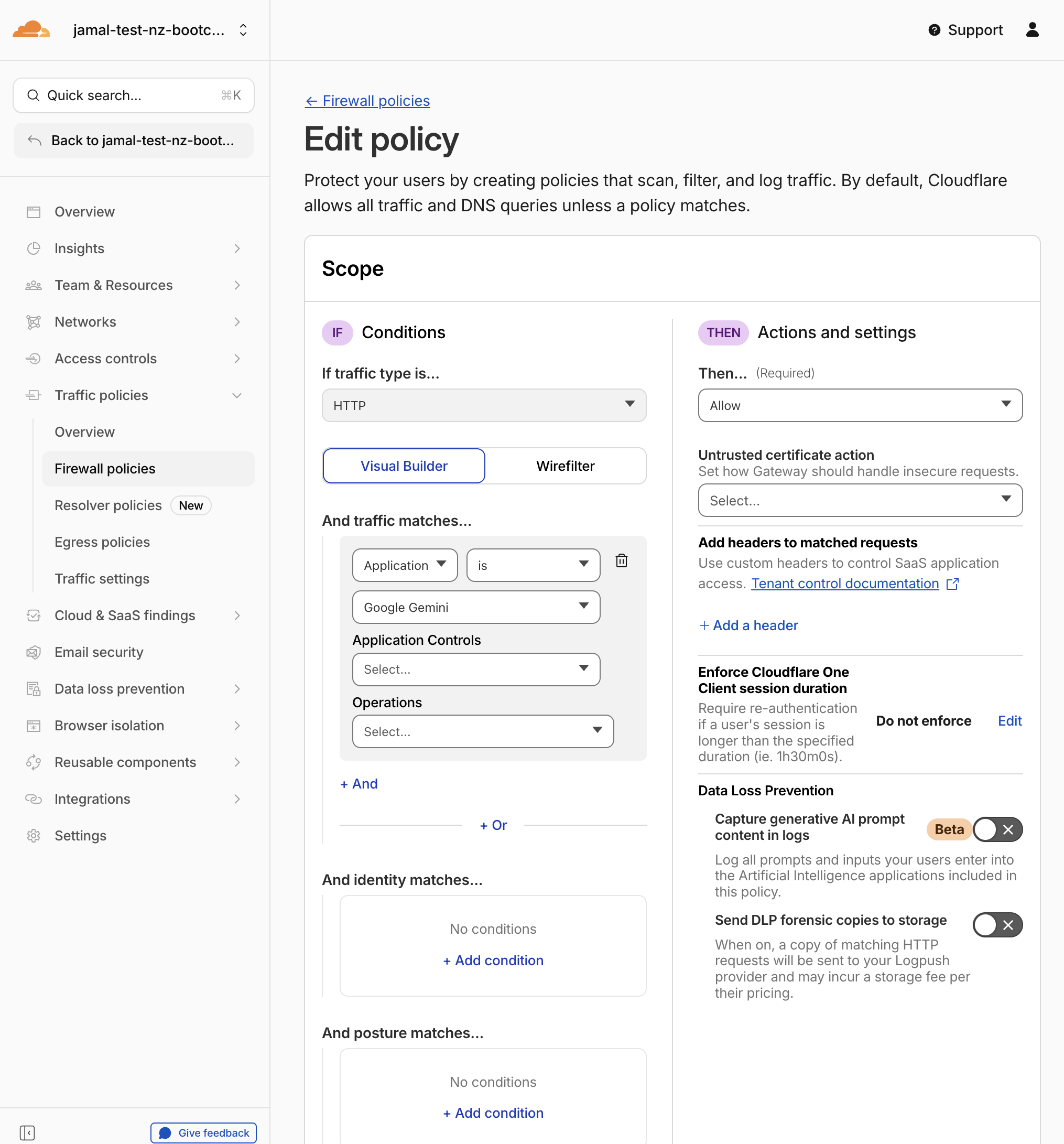
Step 2: Create Policy — Allow Gemini
- Click Add a policy
- Configure:
| Field | Value |
|---|---|
| Policy name | Allow sanctioned Gemini |
| Traffic/matches/Selector | Application |
| Operator | is |
| Value | Google Gemini |
| Action | Allow |
- Click Create policy
Try out the create with AI button to see if it can help you create the policy.
Expected Result
Gemini is explicitly allowed through Gateway.
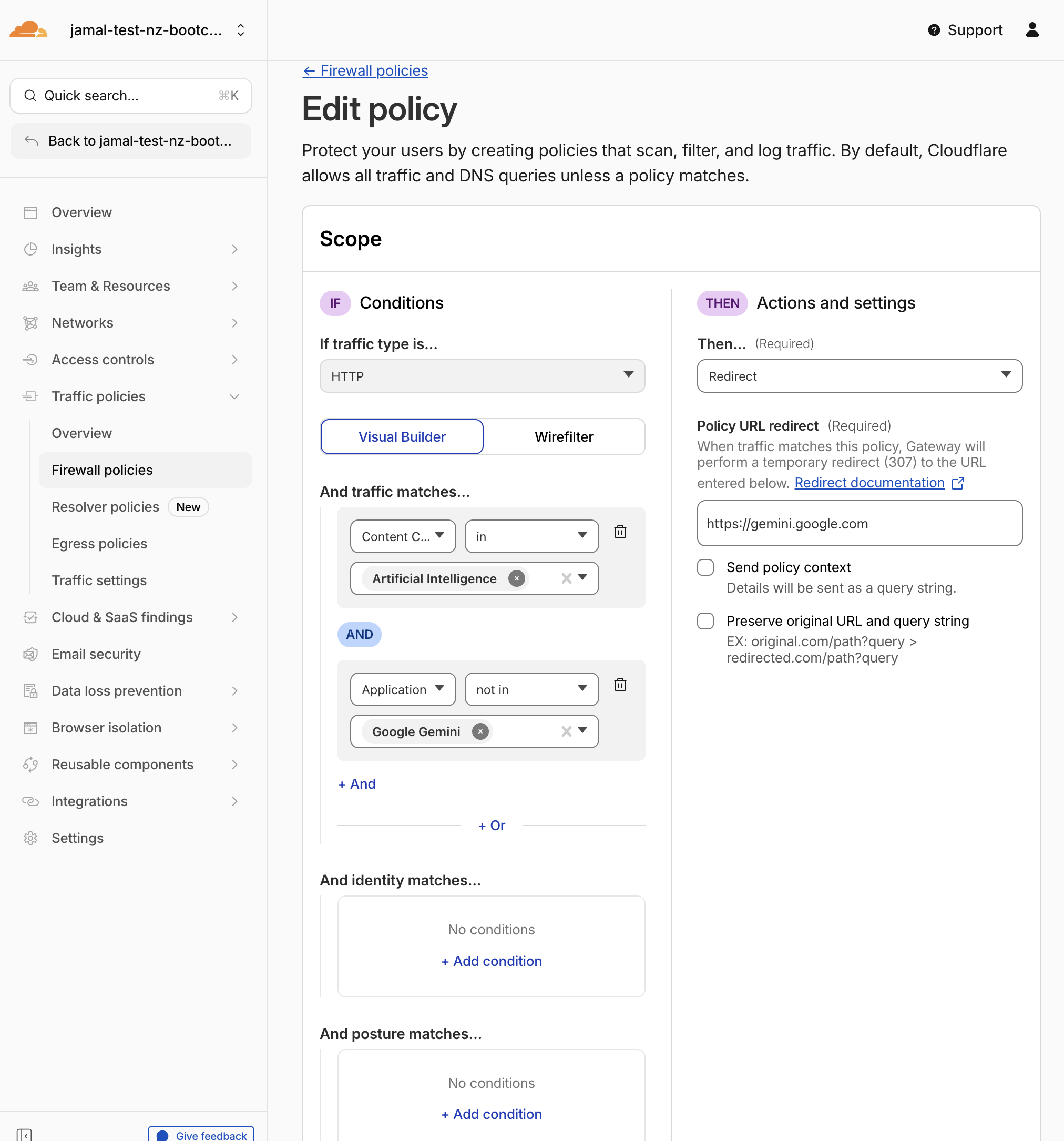
Step 3: Create Policy — Redirect to Gemini (Simple)
- Click Add a policy
- Configure the first traffic condition:
| Field | Value |
|---|---|
| Traffic matches/Selector | Content Categories |
| Operator | in |
| Value | Artificial Intelligence |
- Click + And to add a second condition:
| Field | Value |
|---|---|
| Selector | Application |
| Operator | not in |
| Value | Google Gemini |
- Set the action:
| Field | Value |
|---|---|
| Action | Redirect |
| Redirect URL | https://gemini.google.com |
- Name the policy:
| Field | Value |
|---|---|
| Policy name | Redirect to Gemini |
- Click Create policy
Expected Result
Any traffic to AI-categorized destinations other than Gemini is silently redirected to https://gemini.google.com.
Step 4: Verify Policy Order
Policy order matters. Gateway evaluates HTTP policies top to bottom. Your policies should be in this order:
| # | Policy Name | Action |
|---|---|---|
| 1 | Allow sanctioned Gemini | Allow |
| 2 | Redirect to Gemini | Redirect |
If the redirect policy is above the allow policy, Gemini traffic may also be redirected. Drag and reorder policies if needed. For the order of enforcement details refer to the Cloudflare documentation.
In the upcoming section (DLP AI Prompt Inspection), you will add a third policy above both of these that blocks sensitive data sent to Gemini. The final order will be (after you create the DLP policy in the next section):
| # | Policy Name | Action |
|---|---|---|
| 1 | Block sensitive data to Gemini | Block |
| 2 | Allow sanctioned Gemini | Allow |
| 3 | Redirect to Gemini | Redirect |
Step 5: Test the Simple Redirect
From the Windows 11 VM (with WARP/Cloudflare One Client connected):
- Open the browser and navigate to
https://chatgpt.com - You should be silently redirected to Google Gemini — the address bar changes instantly with no intermediate page
- Try
https://claude.ai— also redirects silently to Gemini - Navigate to
https://gemini.google.com— works directly with no redirect
Expected Result
- ChatGPT and Claude redirect to Gemini with a standard HTTP 302
- Gemini loads directly
- Employees get sent to the right place, but they have no idea why or what was intercepted
The redirect works, but the employee experience is a silent jump. They don't know:
- Which tool they tried to access
- Why the redirect happened
- That their organization is monitoring AI usage
- What data was captured about the request
Making Redirects Programmable with Workers
The simple redirect solves the routing problem, but it doesn't solve the communication problem. Employees hit a dead URL and suddenly find themselves on Gemini with no context.
What if the redirect could:
- Explain why the request was intercepted?
- Show which tool was blocked and who made the request?
- Capture all request context for audit and SIEM integration?
- Pause the redirect so users can review the data before proceeding?
Gateway has a feature called Send policy context that automatically appends request metadata (user identity, device ID, original URL, application name, etc.) as URL query parameters on every redirect. A Cloudflare Worker can read these parameters and build a completely custom user experience.
In the next step, you will edit the existing redirect policy to point at a Worker instead of Gemini directly. The Worker will display a branded notice page, show all captured context, and auto-redirect after 10 seconds — turning a silent 302 into a transparent, programmable gateway.
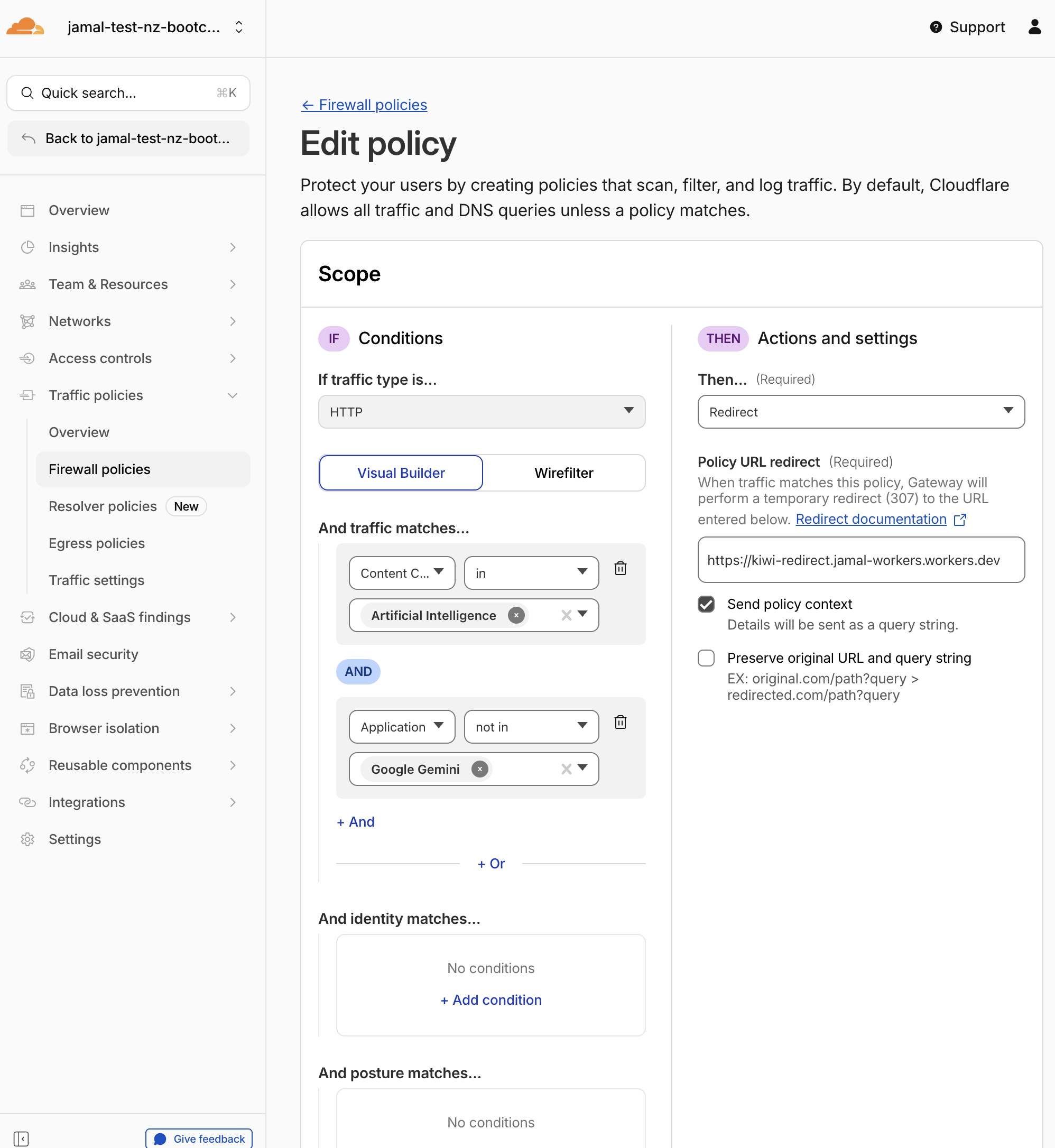
Step 6: Upgrade to Programmable Redirect
Edit the existing redirect policy to use the Worker instead of a direct redirect.
- In Gateway HTTP Policies, find the
Redirect to Geminipolicy and click Edit - Scroll to the Action section
- Change the redirect URL:
| Field | New Value |
|---|---|
| Redirect URL | https://kiwi-redirect.jamal-workers.workers.dev?destination=https://gemini.google.com |
This Worker is pre-deployed on the instructor's Cloudflare account for this lab. You only need to update the Gateway policy URL — no deployment is required.
- Enable Policy settings toggles:
| Setting | Value |
|---|---|
| Send policy context | Enabled |
| Preserve original path and query string | Disabled |
- Click Save policy
What Changed
You updated the same policy — you did not create a new one. Gateway still matches the same traffic (AI category, not Gemini), but now the 302 redirect goes to the Worker instead of Gemini directly. The Worker receives all the request context, builds a branded page, and then redirects to Gemini.
Step 7: What the Redirect Worker Does
Instead of a silent redirect to Gemini, requests are sent to a Cloudflare Worker (kiwi-redirect.jamal-workers.workers.dev) that provides a branded user experience. The Worker:
- Reads Gateway policy context from the URL query parameters automatically appended by the Send policy context toggle
- Displays a branded notice page showing the blocked application, the user's identity, and the original destination
- Runs a 10-second countdown before auto-redirecting to Gemini
- Allows the user to pause and explore all captured context fields before proceeding
This Worker is pre-deployed by the instructor for the lab. You only need to update the Gateway policy URL — no deployment is required.
If you want to build your own redirect handler later, the pattern works with any HTTP endpoint: Cloudflare Workers, AWS Lambda, Azure Functions, a Node.js/Express app, a Python/Flask service, or any web server that can read URL query parameters. Gateway sends the same cf_* fields regardless of where the redirect URL points.
Architecture
The redirect URL in your Gateway policy can point to any HTTP endpoint. Gateway appends the same cf_* query parameters to every redirect — the receiving service just needs to parse them. You can also pass your own query parameters (like destination) in the redirect URL — Gateway preserves them and appends the cf_* fields after.
┌────────────┐     ┌──────────────────────┐     ┌──────────────────────────────┐     ┌───────────────┐
│  Employee  │────▶│  Cloudflare Gateway  │────▶│  Redirect Handler            │────▶│ Google Gemini │
│  (WARP/
| CF1 Client) │     │                      │     │  (any HTTP endpoint)          │     │ (sanctioned)  │
│             │     │  • Match: AI category│     │                               │     └───────────────┘
│             │     │  • Action: Redirect  │     │  Could be:                    │
│             │     │  • Send policy context│    │  • Cloudflare Worker          │
│             │     │                      │     │  • AWS Lambda                 │
│             │     │  Appends:            │     │  • Azure Function             │
│             │     │  ?destination=...    │     │  • Express.js / Flask / etc.  │
│             │     │  &cf_user_email=...  │     │                               │
│             │     │  &cf_site_uri=...    │     │  Handler reads cf_* params    │
│             │     │  &cf_application=... │     │  + destination param,         │
│             │     │  &cf_source_ip=...   │     │  renders a branded page,      │
│             │     │                      │     │  then redirects to the        │
└────────────┘     └──────────────────────┘     │  configured destination.      │
                                                └──────────────────────────────┘
What Gateway Sends (Policy Context Fields)
When Send policy context is enabled, Gateway appends these fields as URL query parameters:
| Parameter | Description | Example |
|---|---|---|
cf_user_email | Authenticated user email | employee@acmecorp.com |
cf_site_uri | Full URL of the original request | https://chatgpt.com/ |
cf_application_name | Matched application name | ChatGPT |
cf_request_categories | Domain content categories | Artificial Intelligence |
cf_source_ip | Device's public IP address | 203.0.113.5 |
cf_device_id | WARP/Cloudflare One Client device UUID | 6d48997c-a1ec-4b16-b42e-d43ab4d071d1 |
cf_rule_id | Gateway policy UUID that matched | a1b2c3d4-... |
cf_account_id | Zero Trust account ID | d57c3de4-... |
cf_filter | Traffic type (http, dns, av, l4) | http |
cf_referer | Original HTTP referer header | https://example.com/ |
cf_request_id | HTTP request ID | ... |
How the Redirect Handler Works (Pseudocode)
The logic is the same no matter what platform you host it on. The service receives an HTTP request with cf_* query parameters, renders a branded HTML page, and redirects the user after a countdown.
// Redirect handler — pseudocode (any platform)

function handleRequest(request):
    // 1. Parse Gateway policy context from query parameters
    params = parseQueryString(request.url)

    // You can pass your own parameter in the Gateway redirect URL
    destination = params["destination"] || "https://gemini.google.com"

    // Gateway automatically appends these fields
    userEmail   = params["cf_user_email"]      // who made the request
    originalUrl = params["cf_site_uri"]        // what they tried to access
    appName     = params["cf_application_name"]// which AI tool was matched
    sourceIp    = params["cf_source_ip"]       // device's public IP
    deviceId    = params["cf_device_id"]       // WARP/Cloudflare One Client device UUID
    ruleId      = params["cf_rule_id"]         // which Gateway policy matched
    categories  = params["cf_request_categories"]
    // ... plus cf_account_id, cf_filter, cf_referer, cf_request_id, etc.

    // 2. Build a branded HTML page that:
    //    - Shows the blocked app name and original URL
    //    - Displays the user's identity and device info
    //    - Shows the destination they'll be redirected to
    //    - Runs a countdown timer (e.g., 10 seconds)
    //    - Lets the user pause and explore all captured context
    //    - Provides a button to skip the countdown
    //    - Auto-redirects to the configured destination

    html = renderBrandedPage({
        destination, userEmail, originalUrl, appName,
        sourceIp, deviceId, ruleId, categories, ...
    })

    return HTMLResponse(html)
A silent 302 redirect is functional but opaque. A programmable redirect handler enables:
- Transparent communication — employees understand why they were redirected
- Audit visibility — every redirect captures identity, device, and request context
- Custom UX — tailor the experience by user group, device, or application
- Programmable routing — route different users to different sanctioned tools
- Platform-agnostic — works on Cloudflare Workers, AWS Lambda, Azure Functions, or any web service
Because the Worker reads destination from the query string, the same Worker can redirect to different sanctioned tools:
?destination=https://gemini.google.com→ redirect to Gemini?destination=https://internal-wiki.company.com→ redirect to internal wiki?destination=https://approved-saas.example.com→ redirect to approved SaaS
Just change the destination value in your Gateway policy — no code changes needed.
The pre-deployed Worker in this lab is a standard Cloudflare Workers project with ~800 lines of embedded HTML/CSS/JS for the countdown timer, Policy Context Explorer table, and responsive layout — all in a single file with zero external dependencies.
Step 8: Test the Programmable Redirect
From the Windows 11 VM (with WARP/Cloudflare One Client connected):
Part A — See the Redirect Page
- Open the browser and navigate to
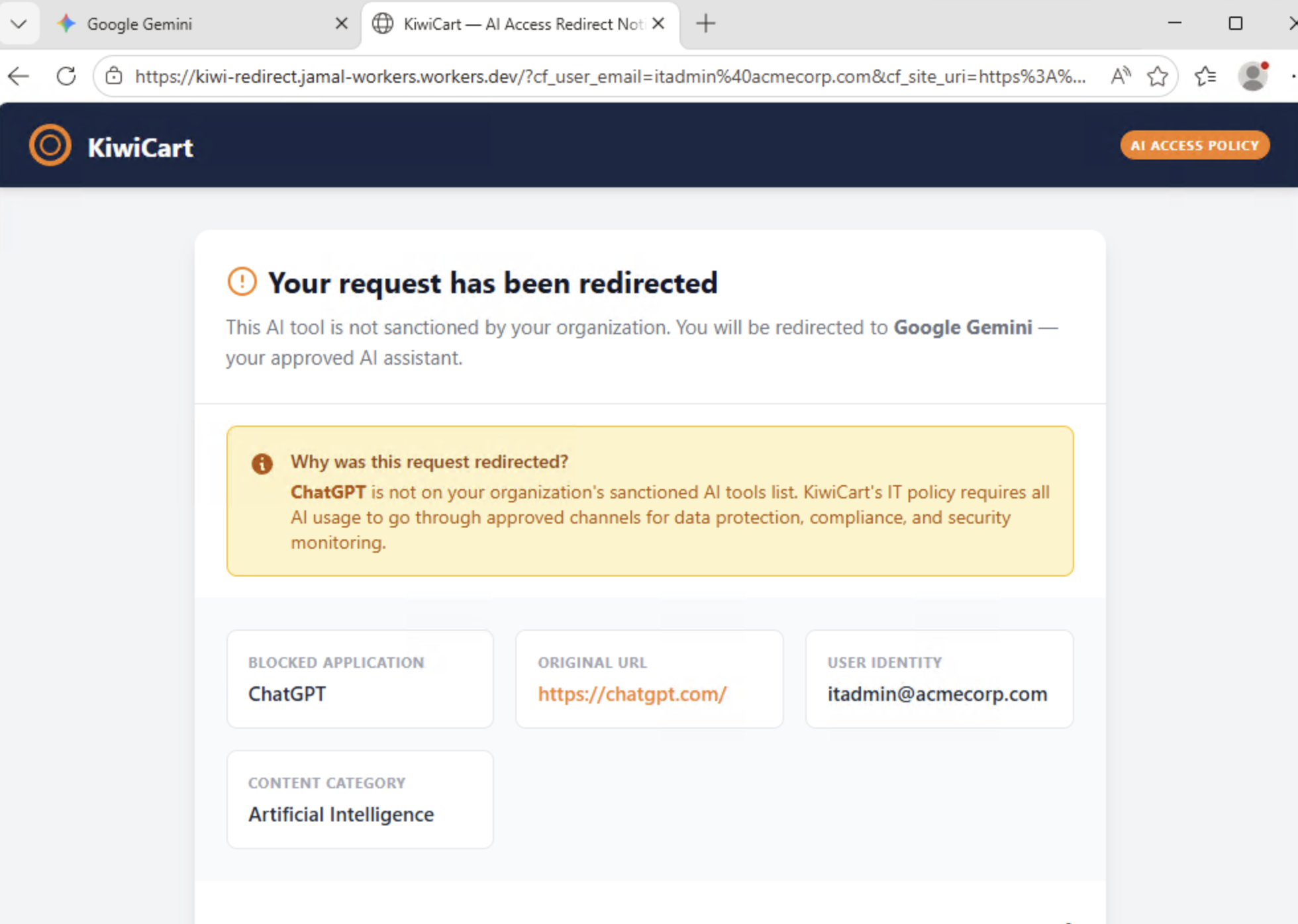
https://chatgpt.com - You should see the KiwiCart redirect notice page with:
- "Your request has been redirected" header
- Blocked application: ChatGPT
- Your user identity (from WARP/Cloudflare One Client)
- Original URL and content category
- A 10-second countdown with a progress bar
- Click "Stop Redirect" to pause the countdown
- The Policy Context Explorer panel expands below, showing all
cf_*fields Gateway sent:- Which fields are present (green left border)
- Which fields are absent (gray left border)
- Each field's description
- Use the "Show Present Only" and "Show All" toggle buttons to filter the table
- Read the info box explaining how these fields can be used for custom UX, SIEM enrichment, or audit logging
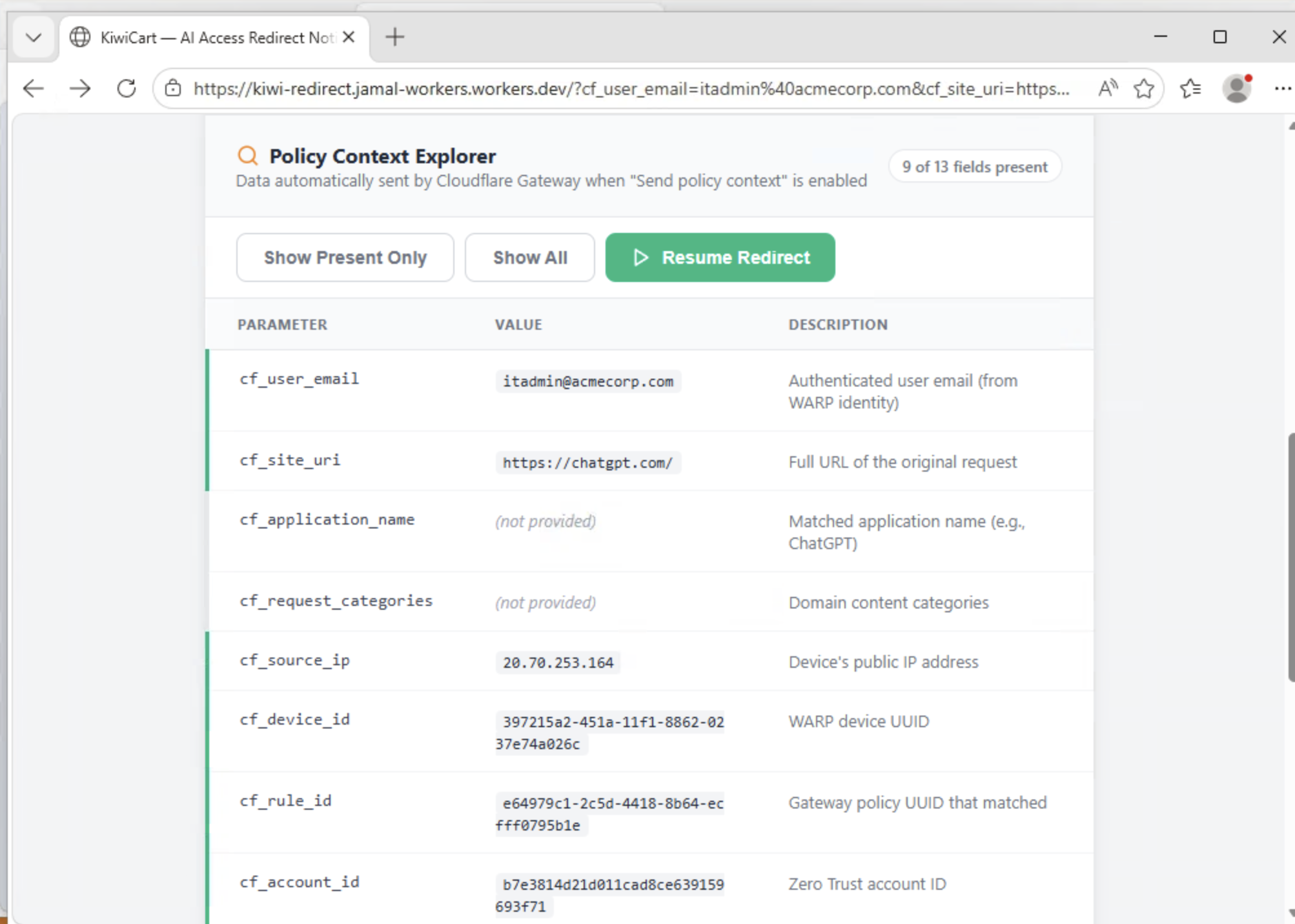
- Click "Resume Redirect" to continue
- After the countdown completes (or if you skipped it), you land on Google Gemini
Part B — Test Other AI Tools
- Try
https://claude.ai— also shows the redirect page, then forwards to Gemini - Navigate to
https://gemini.google.com— loads directly (bypasses the Worker)
Expected Result
- ChatGPT and Claude show the branded KiwiCart redirect page before forwarding to Gemini
- The redirect page displays the user's identity, blocked application, and original URL
- The Policy Context Explorer shows Gateway policy context fields
- Gemini loads directly without any redirect page
- Employees get transparency + a sanctioned path, not a dead end
Step 9: Review Gateway Logs
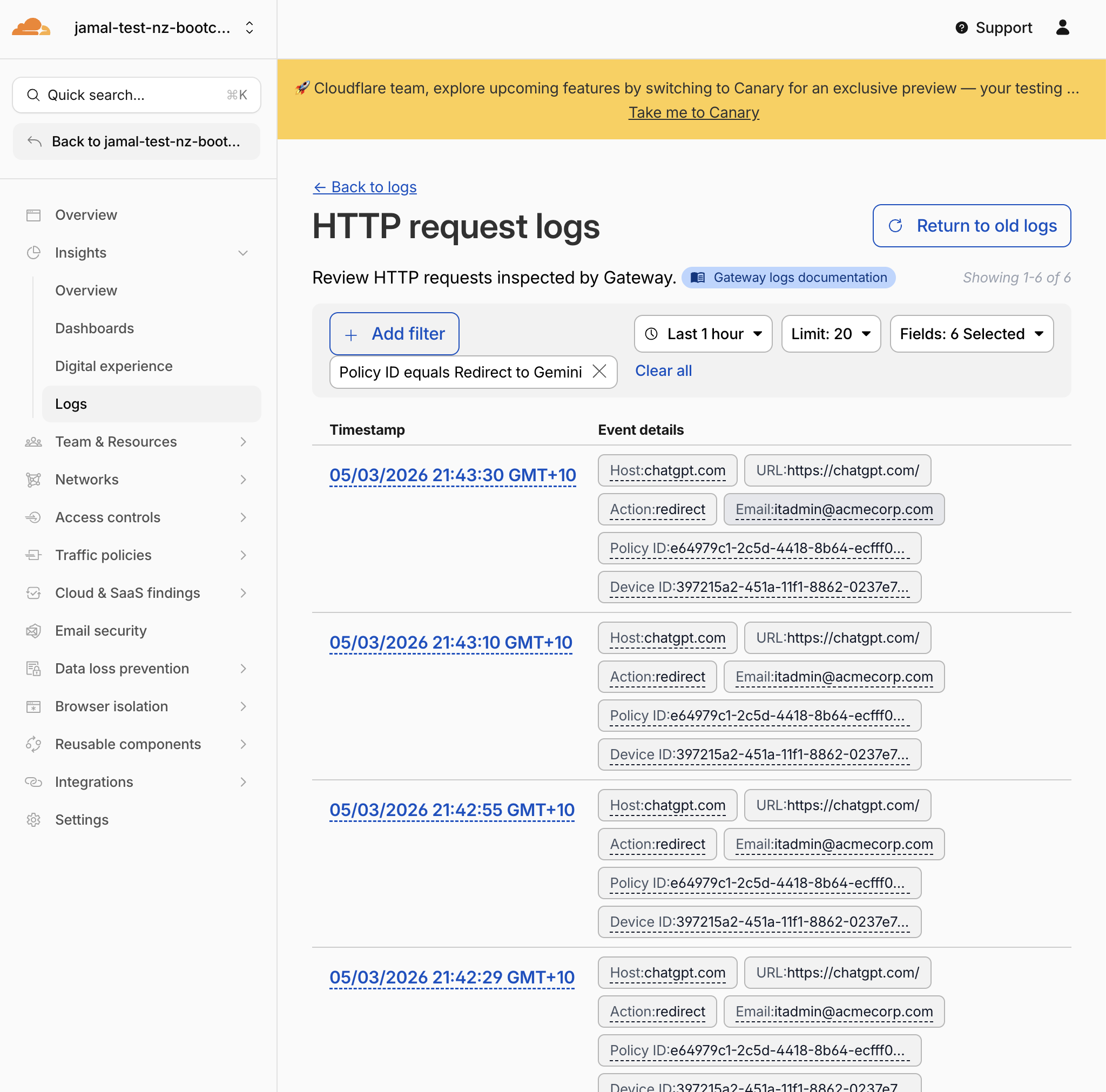
- Navigate to Insights > Logs > HTTP request logs
- Filter by Policy name equals
Redirect to Gemini - Review the redirected requests — you should see the original destination (ChatGPT, Claude, etc.) and the redirect action
Expected Result
Redirected requests show the AI application URL, the matching policy, and the redirect action. This is the data that feeds Shadow IT discovery.
Validation
Phase 1: Simple Redirect
-
Allow sanctioned Geminipolicy created -
Redirect to Geminipolicy created with Content Categories + Application exclusion - Policy order is correct (Allow above Redirect)
- ChatGPT silently redirects to Gemini (tested from Windows 11 VM)
- Gemini loads directly without any redirect
Phase 2: Programmable Redirect
- Redirect policy edited to point to
https://kiwi-redirect.jamal-workers.workers.dev - Send policy context is enabled on the redirect policy
- ChatGPT shows the KiwiCart branded redirect page
- Redirect page displays user email, blocked application, and original URL
- Policy Context Explorer shows Gateway
cf_*parameters - Countdown pauses when "Stop Redirect" is clicked
- Countdown resumes when "Resume Redirect" is clicked
- After countdown (or "Go to Gemini Now"), user lands on Google Gemini
- Redirect events visible in Gateway HTTP logs
Troubleshooting
ChatGPT is not redirected
- Ensure WARP/Cloudflare One Client is connected and routing traffic through Gateway
- Verify the redirect policy is enabled (not in draft)
- Check that
Content CategoriesincludesArtificial Intelligence - Confirm the
Application not in Google Geminicondition is present - Check policy order — the redirect must be below the Gemini allow
Gemini is also being redirected
- The allow policy for Gemini must be above the redirect policy
- Check that the redirect policy has the
Application not in Google Geminicondition
The redirect page does not show any context data
- Verify Send policy context is enabled on the redirect policy (Step 6)
- Ensure you are browsing from the Windows 11 VM with WARP/Cloudflare One Client connected and authenticated
- The
cf_user_emailfield requires the user to be authenticated via the SAML IdP - Try refreshing the policy in the dashboard and waiting 30–60 seconds
No logs appear
- Verify WARP/Cloudflare One Client is connected
- Verify HTTPS inspection is enabled (M0 Step 5)
- Try browsing to a website and check if any Gateway HTTP logs appear
- Wait 1–2 minutes for log propagation