Configure the Sanctioned MCP Portal
Task
Connect to a remote MCP server directly, explore its tools, then create a sanctioned MCP portal with Access authentication to govern that access.
What is MCP?
Model Context Protocol (MCP) is an open standard that lets AI agents and tools connect to external data sources, APIs, and business systems in a structured way.
Why MCP is useful
- Gives AI agents access to real business systems (CRMs, databases, internal tools)
- Standardizes how agents discover and call tools — no custom one-off integrations
- Enables agentic workflows where AI can take actions, not just answer questions
- Works across MCP clients (Claude Desktop, MCP Inspector, custom agents)
The security problem
Without governance, MCP creates serious risks:
| Risk | Description |
|---|---|
| Shadow MCP | Employees connect to unvetted MCP servers without IT knowledge |
| No identity check | Any MCP client can connect — no authentication required |
| No audit trail | No logs of who called which tools or what data was accessed |
| Data exfiltration | Sensitive data can flow to unmanaged MCP servers |
| Supply chain risk | Unvetted MCP servers may contain malicious tool definitions |
| Tool injection | Attackers can manipulate tool descriptions to influence AI behavior |
Why Cloudflare
Cloudflare provides a governed MCP path:
- MCP Portal — centralizes tool discovery and access for approved MCP servers
- Access — enforces identity-based authentication before any tool call
- Gateway — blocks direct/shadow MCP traffic outside the sanctioned portal
- Logs — full audit trail of every tool invocation with user identity
Architecture
The lab flow follows this progression:
Phase 1: Direct access works (unsanctioned)
MCP Inspector → Direct MCP Server URL → Tools accessible, no auth, no logs
Phase 2: Sanctioned portal created
MCP Inspector → MCP Portal → Access Auth → MCP Server → Tools accessible, logged
Phase 3: Direct access blocked
MCP Inspector → Direct MCP Server URL → BLOCKED by Gateway
MCP Inspector → MCP Portal → Access Auth → MCP Server → Still works ✓
Step 1: Check the MCP Server Health
Before connecting with MCP Inspector, verify the MCP server is reachable.
- Open your browser and navigate to the health endpoint provided by the facilitator:
https://kiwistore-mcp.mythingy.io/health
- You should see JSON like this:
{
  "server": "KiwiCart Ops MCP",
  "version": "1.0.0",
  "mcp_endpoint": "/mcp",
  "tools": [
    "get_product_catalog",
    "get_shipping_policy",
    "get_return_policy",
    "lookup_order_status",
    "get_current_promotions",
    "get_nz_store_locations"
  ],
  "status": "ok"
}
Expected Result
The health endpoint returns JSON with "status": "ok" and lists all 6 tools. This confirms the server is reachable.
The MCP server exposes two identical endpoints:
- Standard:
https://kiwistore-mcp.mythingy.io/mcp(has "mcp" in path) - Stealthy:
https://kiwistore-shadow.mythingy.io/pcm(no "mcp" in hostname or path)
In this step, use the standard endpoint to verify direct access works. The stealthy endpoint will be used later to test defense-in-depth detection.
The /health endpoint is a simple status check. The actual MCP endpoint is /mcp — that's where MCP Inspector will connect.
Step 2: Connect Directly with MCP Inspector
Now connect MCP Inspector to the MCP server directly — without any portal or Access policy.
- Go to MCP Inspector page (it should already be running from the previous page)
If you haven't set up MCP Inspector yet, go to Install MCP Inspector first and run the MCP inspector command.
- In MCP Inspector, configure the connection:
| Setting | Value |
|---|---|
| URL | https://kiwistore-mcp.mythingy.io/mcp |
| Transport Type | Streamable HTTP |
| Connection Type | Via Proxy |
- Use Transport Type: Streamable HTTP (not SSE or stdio)
- Use Connection Type: Via Proxy
- The URL must end with
/mcp— do not use the root URL or/health
- Click Connect
Expected Result
The connection succeeds. You are now connected directly to the MCP server with no authentication.
Step 3: Explore the Tools
After connecting, MCP Inspector shows the available tools.
- Click the Tools tab in MCP Inspector
- You should see 6 tools listed:
| Tool | Description |
|---|---|
get_product_catalog | Returns the full KiwiCart product catalog |
get_shipping_policy | Returns NZ shipping policy and delivery times |
get_return_policy | Returns return and refund policy |
lookup_order_status | Look up order status by order ID |
get_current_promotions | Returns active public promotions |
get_nz_store_locations | Returns NZ store locations with click-and-collect |
- Click on each tool to see its description and input schema
Expected Result
All 6 tools are visible with descriptions. Tools that take parameters (like lookup_order_status) show their input schema.
Step 4: Run a Tool
Test a tool to confirm the server responds correctly.
Test 1: Get the product catalog
- Select
get_product_catalog - Click Run Tool
- Review the response — you should see the full product list with prices:
[
  {
    "id": "kiwi-buds-pro",
    "name": "KiwiBuds Pro",
    "category": "Audio",
    "price": 149,
    "currency": "NZD",
    ...
  },
  ...
]
Test 2: Look up an order
- Select
lookup_order_status - Enter the parameter:
- order_id:
ORD-10042
- order_id:
- Click Run Tool
- Review the response:
{
  "order_id": "ORD-10042",
  "status": "Shipped",
  "items": ["KiwiBuds Pro", "KiwiCharge Pad"],
  "total": "$198 NZD",
  "eta": "Arriving in 2 business days"
}
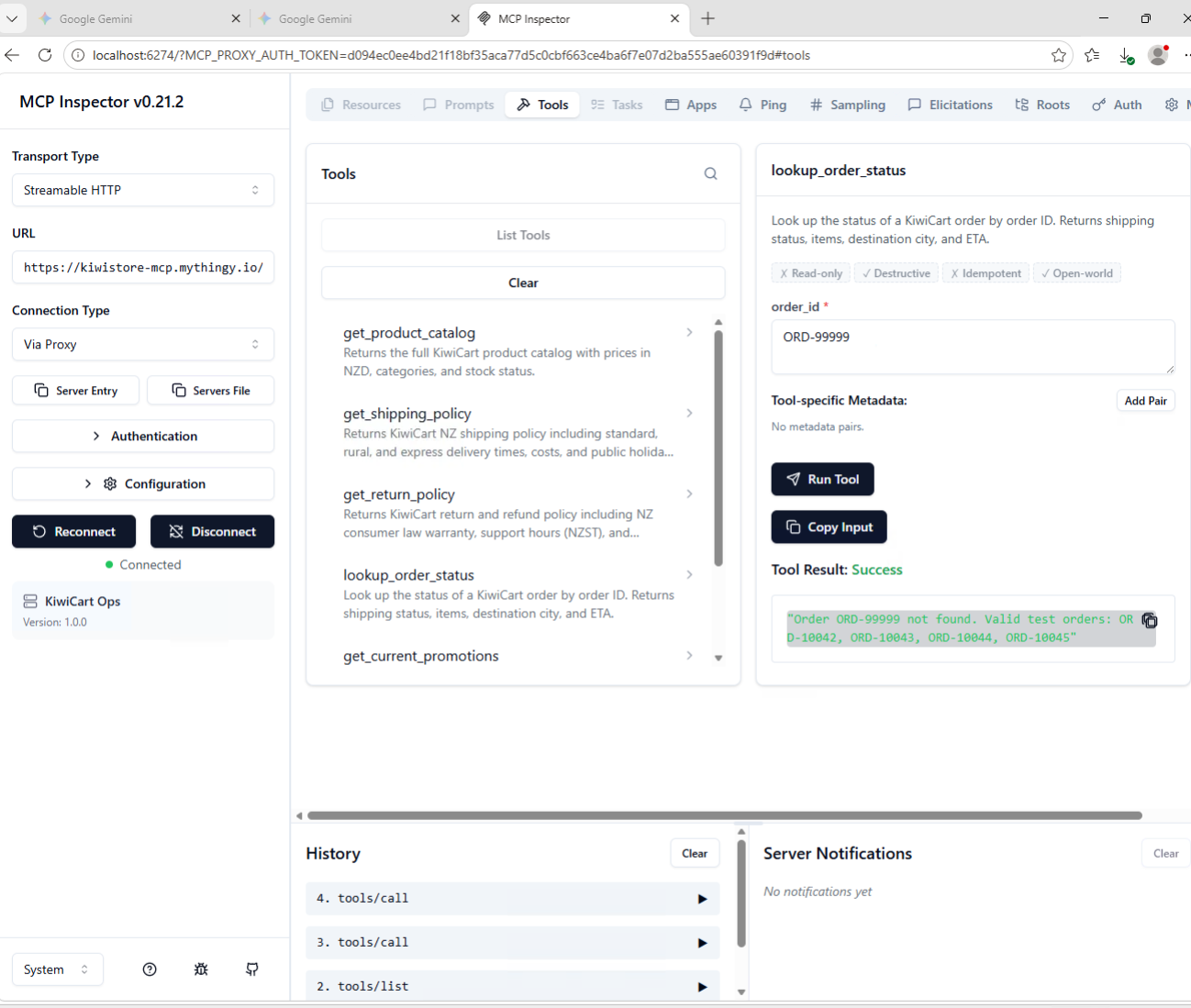
Test 3: Try an invalid order
- Select
lookup_order_status - Enter:
ORD-99999 - Click Run Tool
- Response should say:
Order ORD-99999 not found. Valid test orders: ORD-10042, ORD-10043, ORD-10044, ORD-10045
Expected Result
All tool calls return correct data. The MCP server is fully functional.
You just connected to a live MCP server and called business tools — with no login, no identity check, no audit trail. Any MCP client on the internet can do the same. This is shadow MCP.
Before Steps 5 and 6: The Sanctioned MCP Building Blocks
To govern MCP access, Cloudflare uses two connected objects:
- MCP server object — a registered record of the upstream MCP server (e.g.,
KiwiCart Ops MCP). Cloudflare connects to it, discovers its tools, and applies Access policies. - MCP portal — the sanctioned intermediary (a Cloudflare Access-protected endpoint) that proxies all MCP traffic between clients and the approved MCP server.
Clients do not connect to the server directly; they connect to the portal, authenticate through Zero Trust, and the portal forwards allowed tool calls to the upstream server.
This design gives you:
- Identity enforcement — only approved users (e.g.,
IT admins) can invoke tools - Audit logging — every tool call is logged with the user identity
- Governance — the sanctioned path can be allowed while direct/shadow MCP access is blocked by Gateway
Step 5: Add the MCP Server to AI Controls
Now register the upstream MCP server in your Cloudflare Zero Trust tenant so it can be governed.
- Go to dash.cloudflare.com/one
- Select your Lab account
- Navigate to Access controls > AI controls
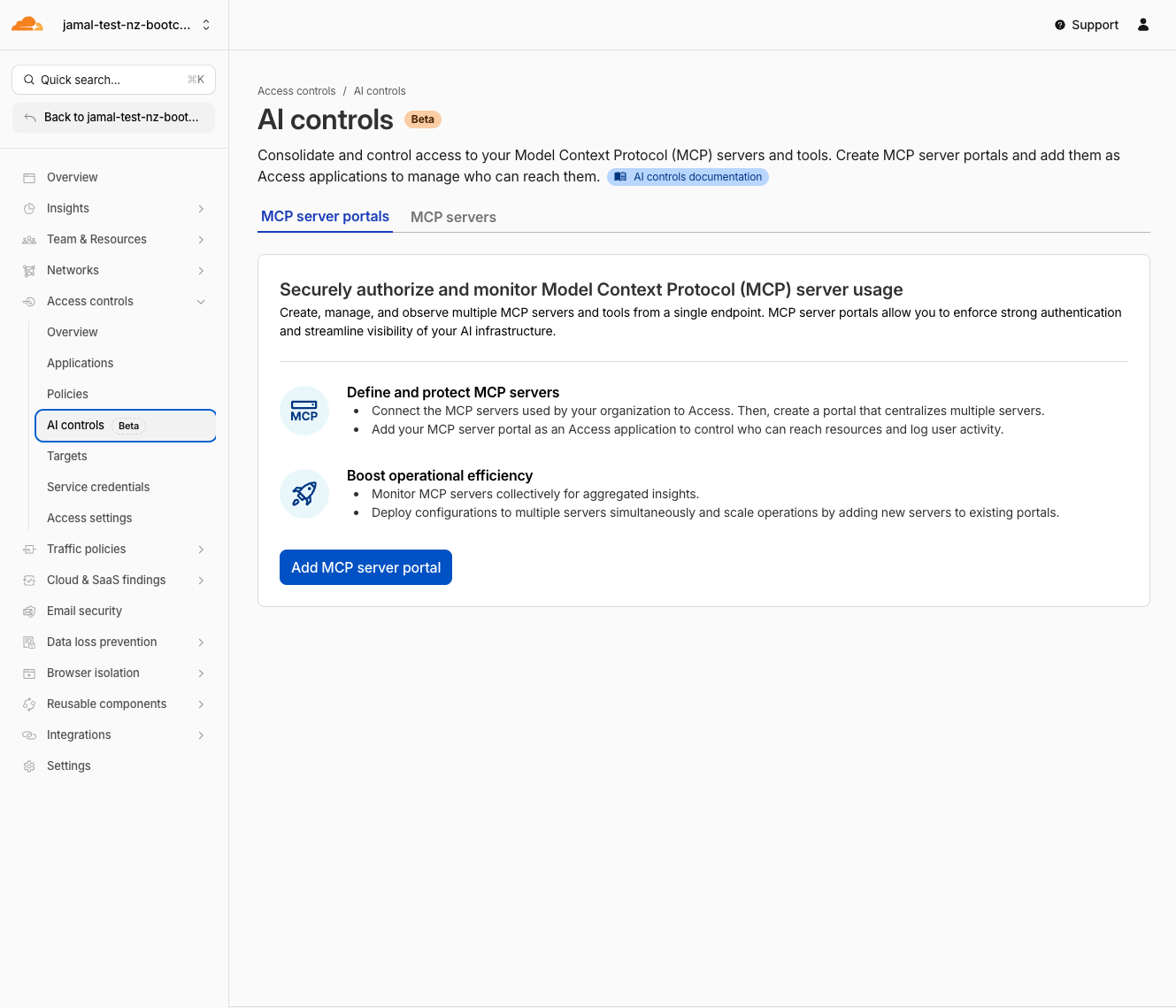
- Go to the MCP servers tab
- Click Add an MCP server
- Configure:
| Field | Value |
|---|---|
| Name | KiwiCart MCP |
| HTTP URL | https://kiwistore-mcp.mythingy.io/mcp |
| Authentication Type | None |
- Add an existint Access Policies Select existing access policies:
- Policies: IT admins
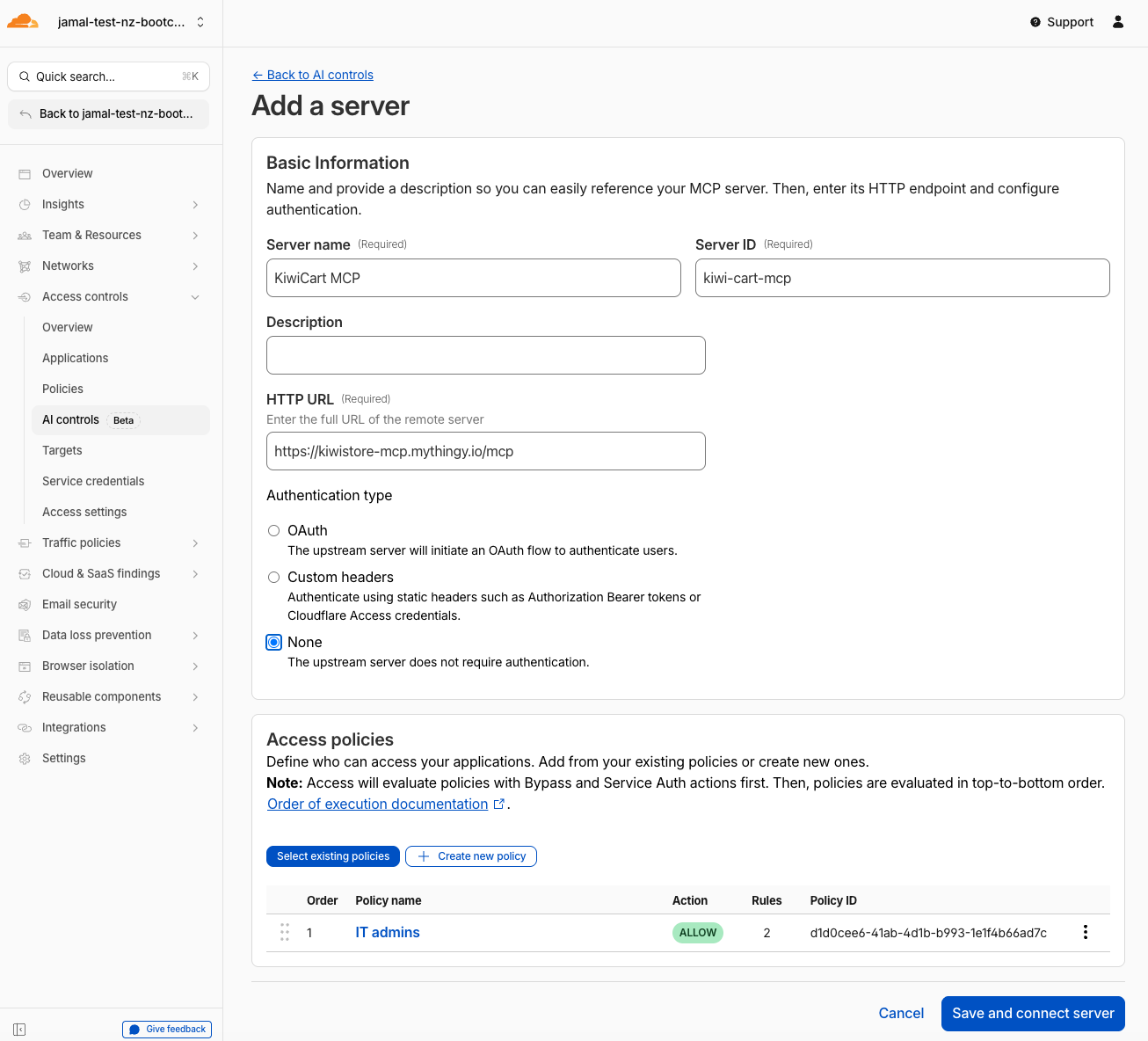
- Click Confirm
- Click Save and connect server
- Wait for the status to change to Ready
Expected Result
The server status shows Ready. Cloudflare has connected to the server and discovered all 6 tools.
Step 6: Create an MCP Server Portal
- Still in Access controls > AI controls
- Click Add MCP server portal
- Configure:
| Field | Value |
|---|---|
| Name | KiwiCart Portal |
| Custom domain | Select your lab domain, set subdomain to mcp-portal (or similar) mcp-portal.<your-lab-slug>.sxplab.com> e.g. mcp-portal.jazzy-sentinel.sxplab.com |
- Under MCP servers, click on Select existing MCP servers and choose
KiwiCart MCP - Optionally review which tools are enabled — all 6 should be on by default
- Add an existint Access Policies Select existing access policies:
- Policies: IT admins
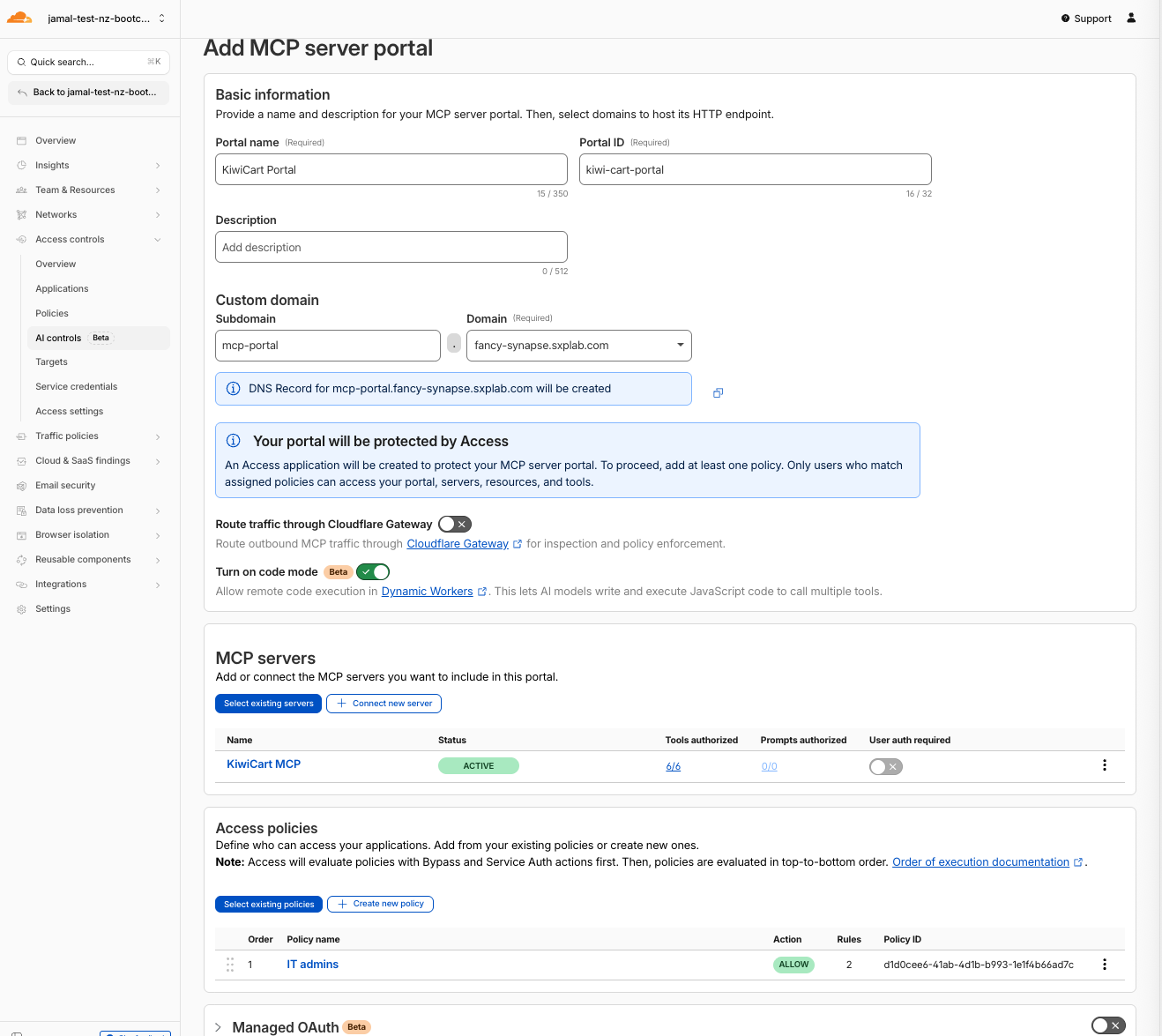
- Click Add MCP server portal
Expected Result
The portal is created. Your portal URL is:
https://mcp-portal.<your-lab-domain>/mcp
Step 7: Connect to the Portal via MCP Inspector
- Go back to MCP Inspector
- Disconnect from from the server you were connected to
- Configure the new connection:
| Setting | Value |
|---|---|
| URL | https://mcp-portal.<your-lab-domain>/mcp |
| Transport Type | Streamable HTTP |
| Connection Type | Via proxy |
- Click Connect
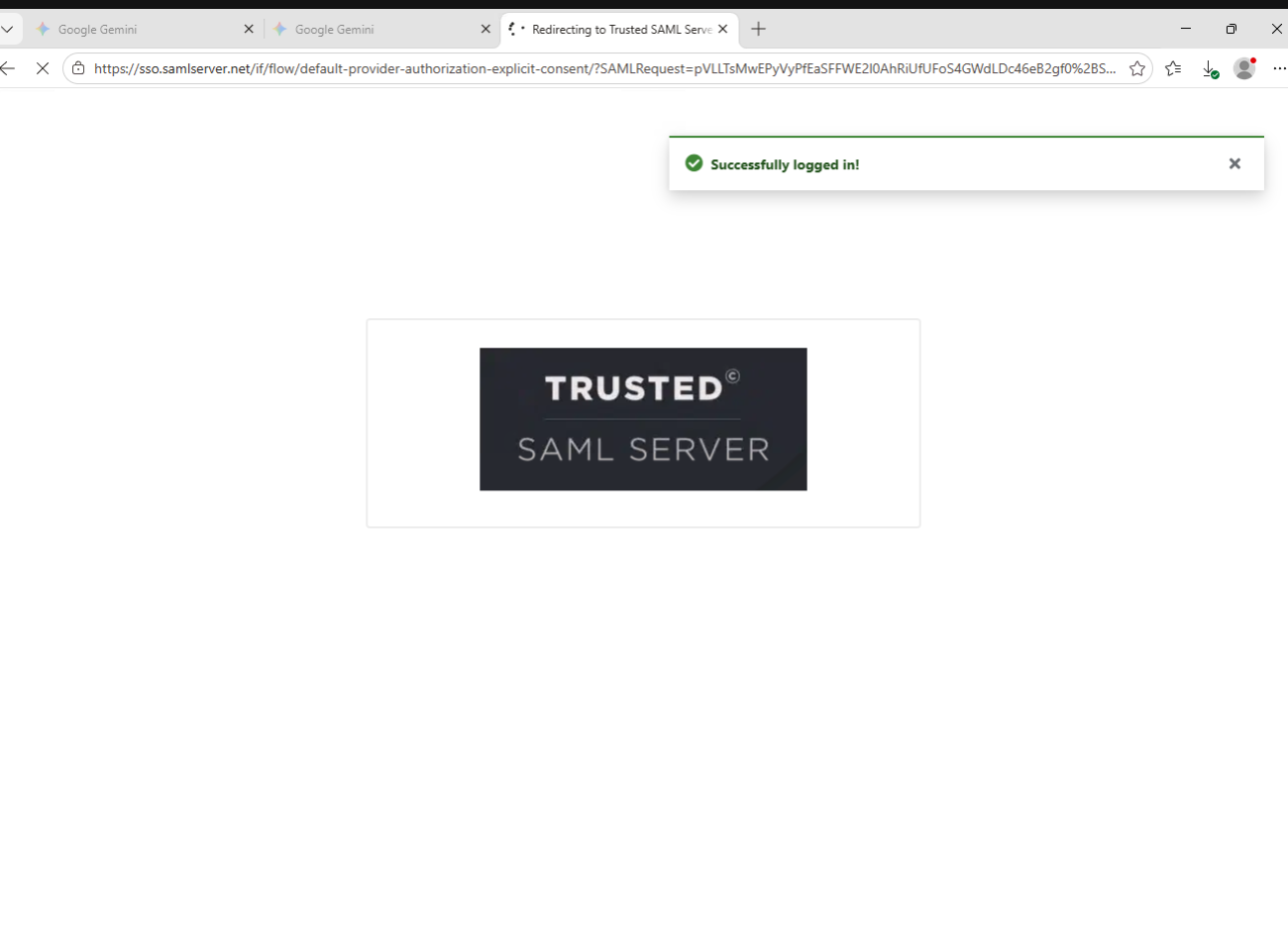
- A browser window opens — authenticate with your SAML credentials (
itadmin@acmecorp.com/#Savetheinternet)
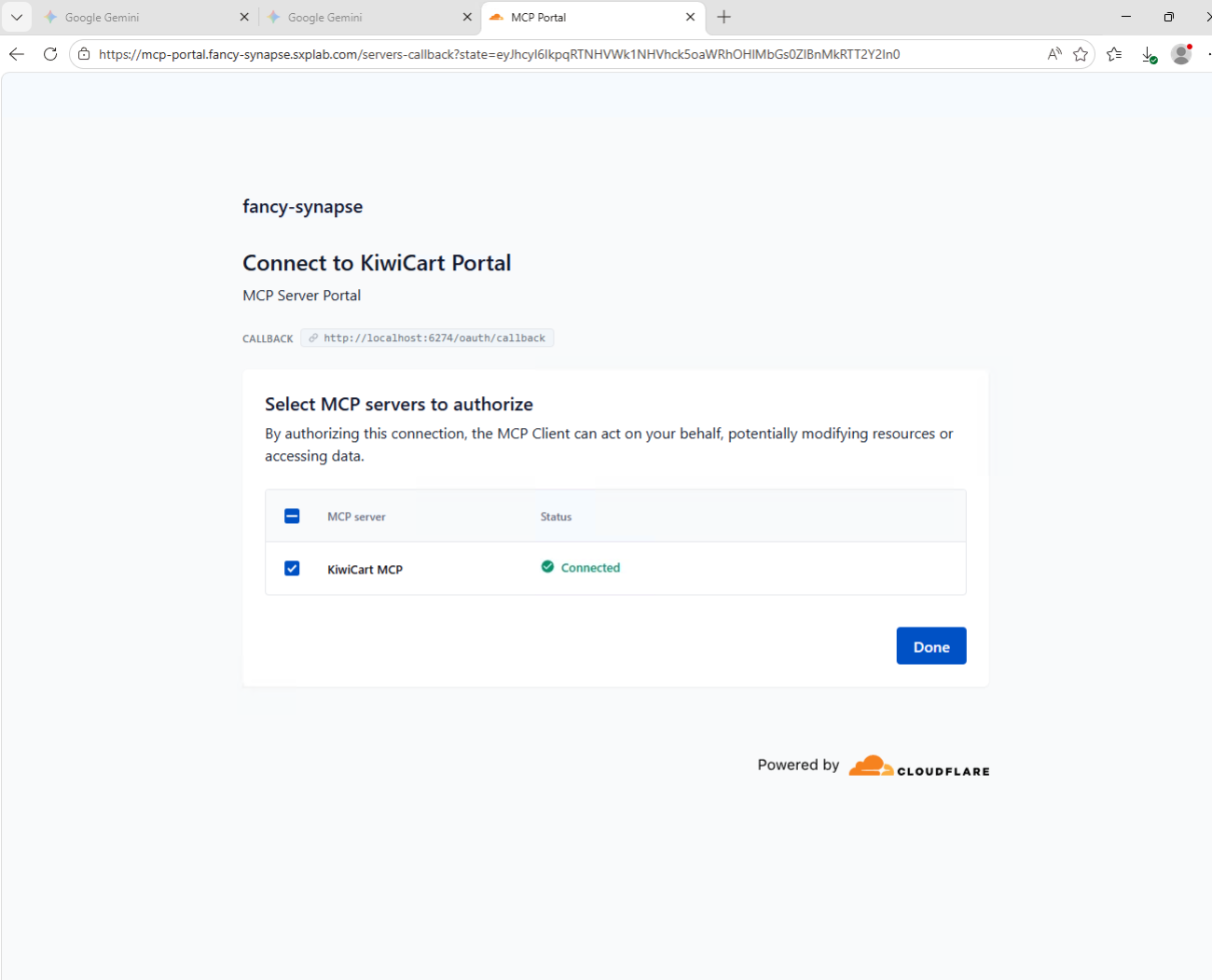
- Select the server to authorise KiwiCart MCP and click done
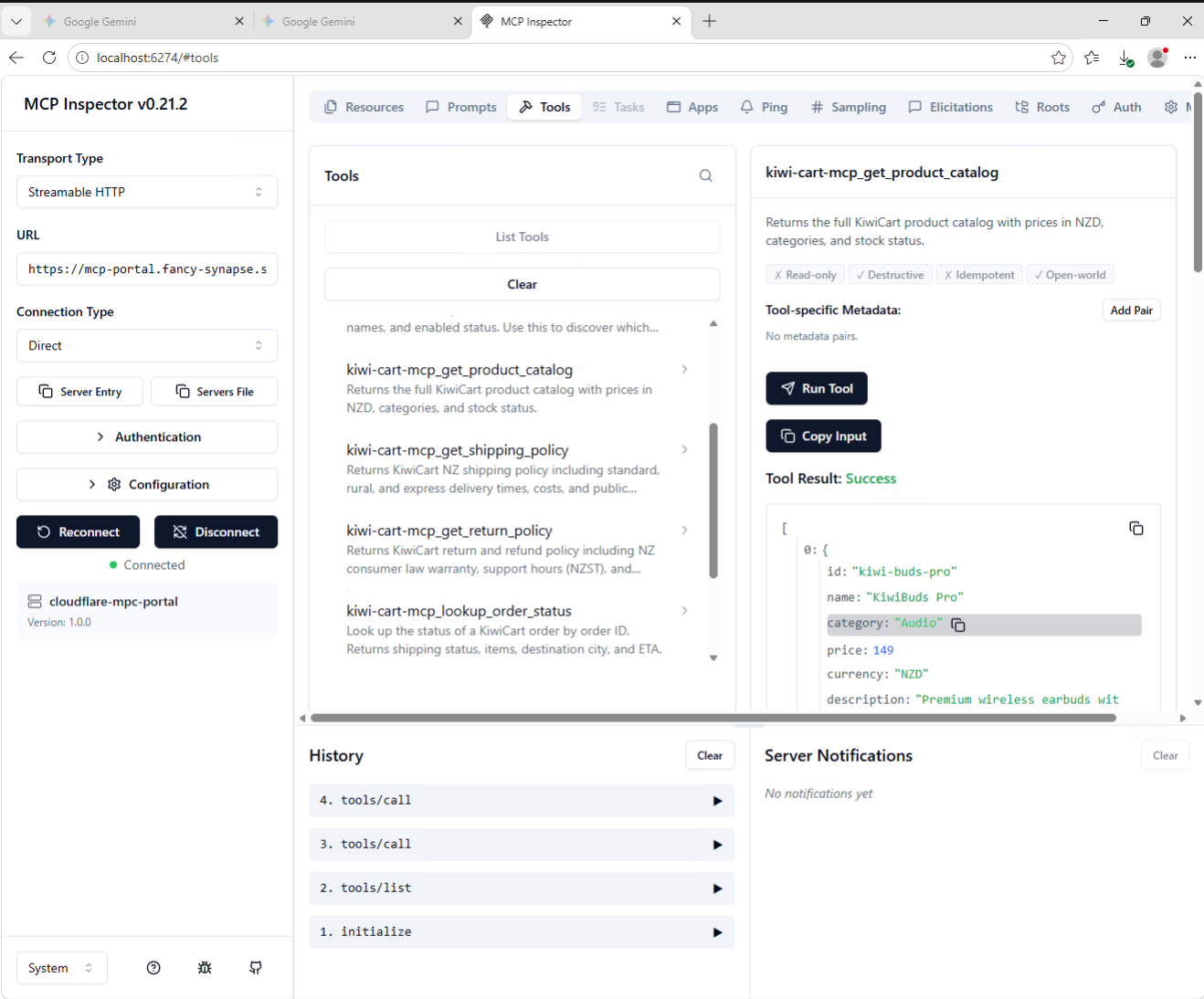
- After authentication, confirm:
- You are connected
- Tools tab shows all 6 tools - name should start with
kiwi-cart-mcp - You can run
get_product_catalogand get the same response as before
Expected Result
- Portal prompts for authentication (Access login flow)
- After auth, tools are visible and callable
- This is the sanctioned path: identity-verified, logged, governed
Step 8: Review Portal Logs
- Go back to Access controls > AI controls
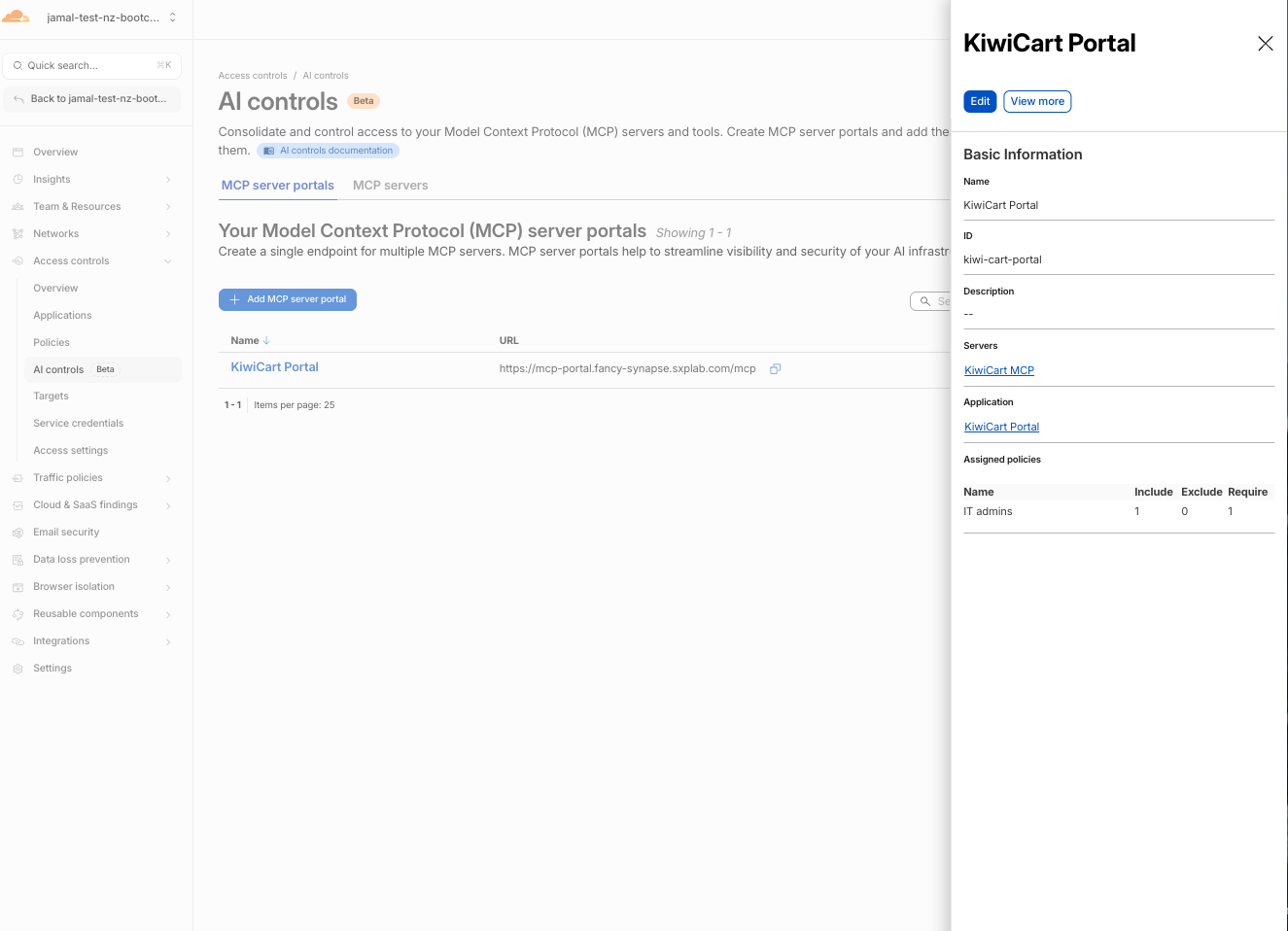
- Find your
KiwiCart Portal, click on the name of the portal then View more button
- Click Logs
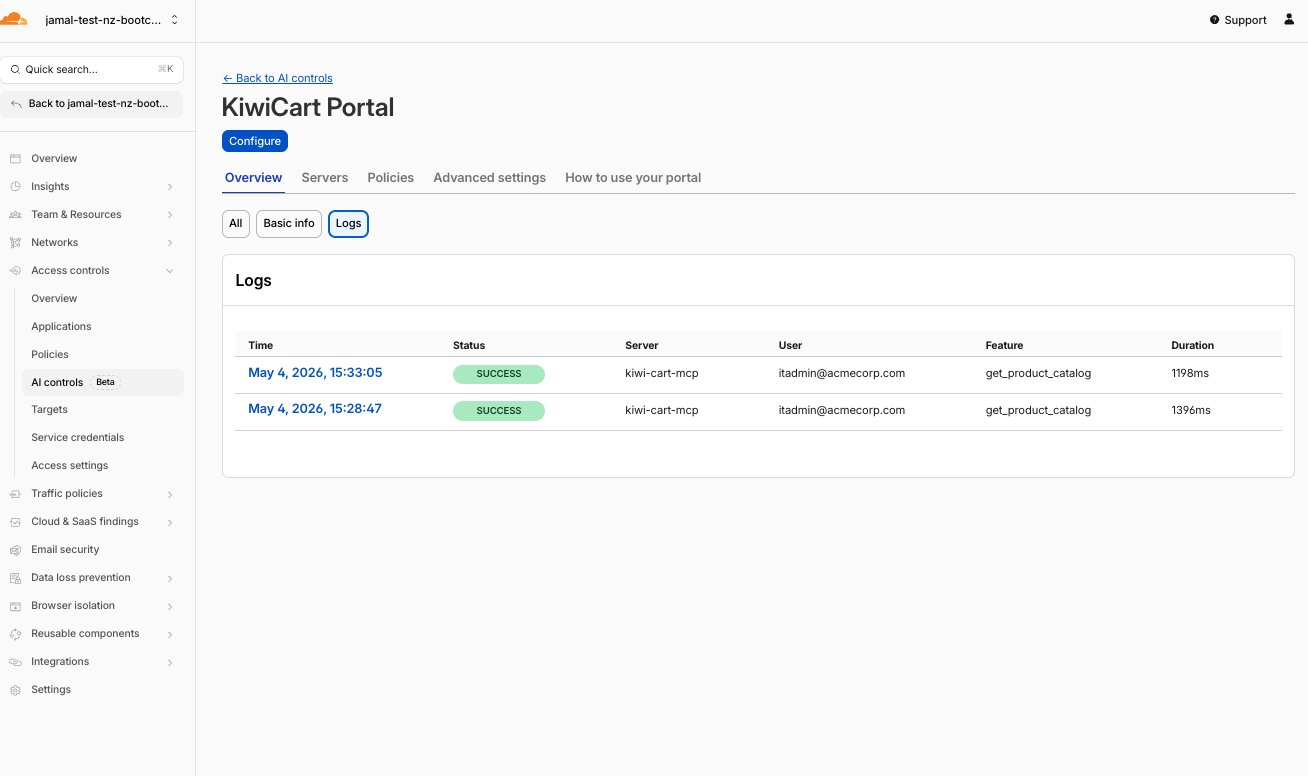
- Review the log entry details:
Basic Information
| Field | What You Should See |
|---|---|
| Time | Timestamp of your tool call |
| Status | SUCCESS for each call |
| Server | kiwi-cart-mcp (or the name of your MCP server) |
| Method | tools/call |
| Feature | The tool name (e.g., get_shipping_policy or get_product_catalog) |
| Duration | Response time in ms |
Location details
- Location region — e.g.,
New South Wales - Location colo — e.g.,
SYD
Identity details
- User —
itadmin@acmecorp.com - Session ID — unique UUID for the session
- User ID — unique Cloudflare Access user identifier
Associated sections
- MCP servers — lists the server(s) included in the portal (e.g.,
KiwiCart MCP) and their authorization status - Access policies — shows the Access policies protecting the portal
Expected Result
Every tool call made through the portal is logged with user identity and method details. This is the observability that direct MCP access does not provide.
Validation
- Health endpoint returns JSON with
"status": "ok" - Direct MCP connection worked with Connection Type: Via Proxy
- All 6 tools visible in the Tools tab
- Successfully ran
get_product_catalogandlookup_order_status - MCP server added to AI controls with status Ready
- MCP portal created with Access policy
- Connected to portal via MCP Inspector with SAML authentication
- Tool calls work through the portal
- Portal logs show tool call history with user identity
Troubleshooting
Health endpoint returns 404 or error
- Verify the URL ends with
/health(not/mcp) - Check with the facilitator that the MCP server is deployed
- Try opening the root URL
/— it should also return the health JSON
Connection Error in MCP Inspector
- Verify the URL ends with
/mcp(not/healthor just the root) - Verify Transport Type is set to Streamable HTTP
- Verify Connection Type is set to Via Proxy
- Check that the remote server is reachable (test
/healthin browser first)
No tools visible after connecting
- Click the Tools tab explicitly — tools may not show on the main panel
- Try clicking List Tools if the button is available
- Disconnect and reconnect
MCP server status shows Error in AI controls
- Verify the HTTP URL is correct and includes
/mcp - The server must be reachable from Cloudflare's network
- Try clicking Sync capabilities to refresh
Portal authentication loop
- Clear browser cookies for your lab domain
- Ensure your identity provider is configured in Zero Trust (M0)
- Try an incognito window
- Verify the Access policy includes
@acmecorp.com
MCP Inspector becomes unresponsive or connection fails
- Stop the running MCP Inspector process (Ctrl+C in the terminal)
- Restart it by following the steps in Run MCP Inspector
- Reconnect with the correct URL and connection settings